Inspect
Understand selected elements, parameters, views and project information through supported read tools.
Eli is designed to turn natural-language questions into supported model inspection and carefully reviewed actions. Esattia flags; the engineer decides.
The Esattia mark becomes the assistant that moves with your workflow. Scroll to reveal Eli, then explore the supported-workflow approach below.
Explore model information and supported review workflows with Eli. Access and supported actions vary within the development preview.
Understand selected elements, parameters, views and project information through supported read tools.
Investigate supported model findings and checks. Results remain evidence for professional review.
Review the intended scope before a supported model change. Approval and execution are separate steps.
Read back the result and record what changed. A completion message alone is not independent verification.
Development records describe selected read-only external-AI workflows through a configured connection. Supported clients and enabled operations need release-specific confirmation; this is not general access to the internal tool library.
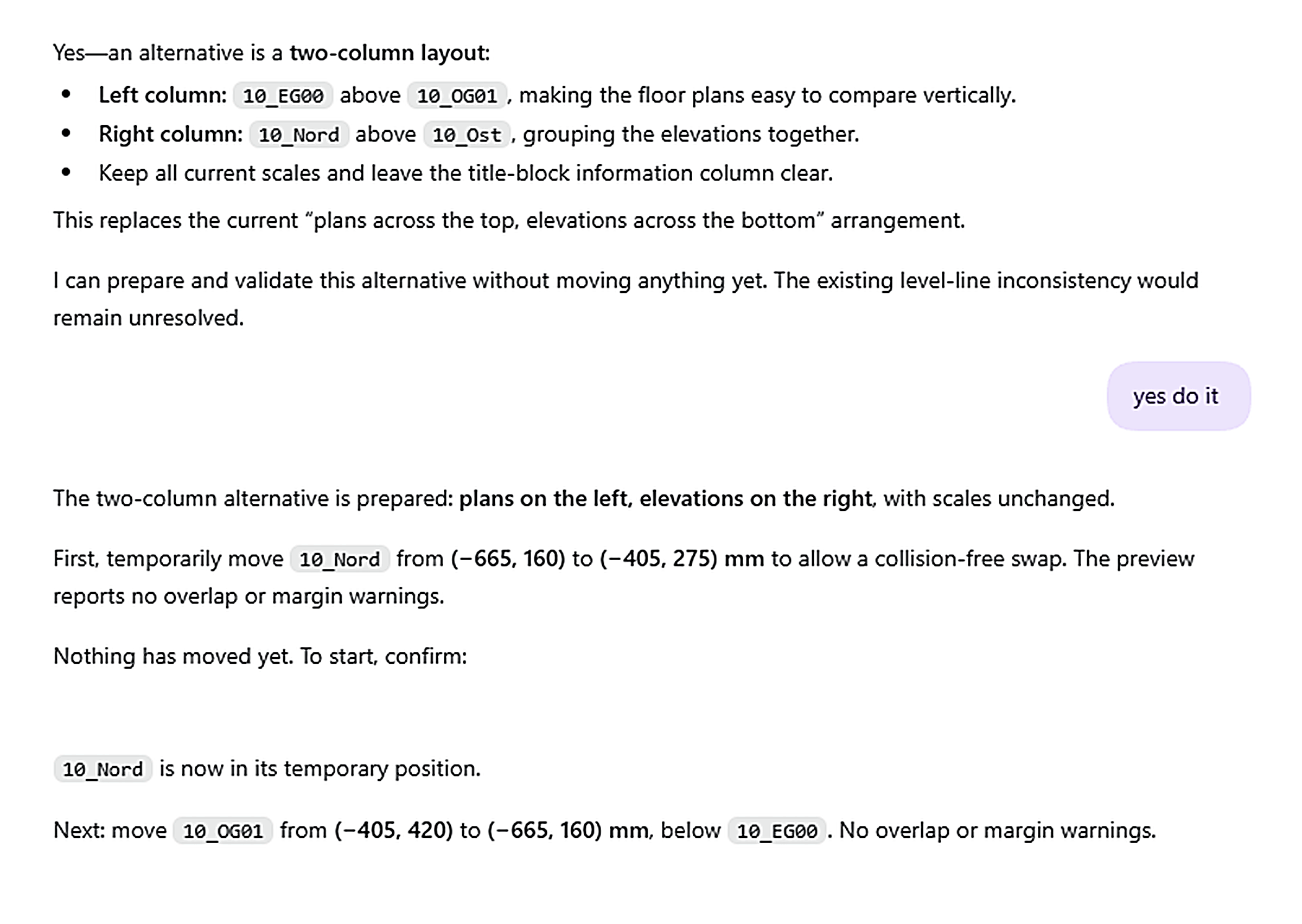
Development preview · Confirm the supported client, connection and enabled read-only tools before use. Compatibility does not imply endorsement.
Review DXF plans and sections, inspect proposed levels and prepare the setup in Esattia. Creating elements in Revit is planned; this preparation step does not change the model.
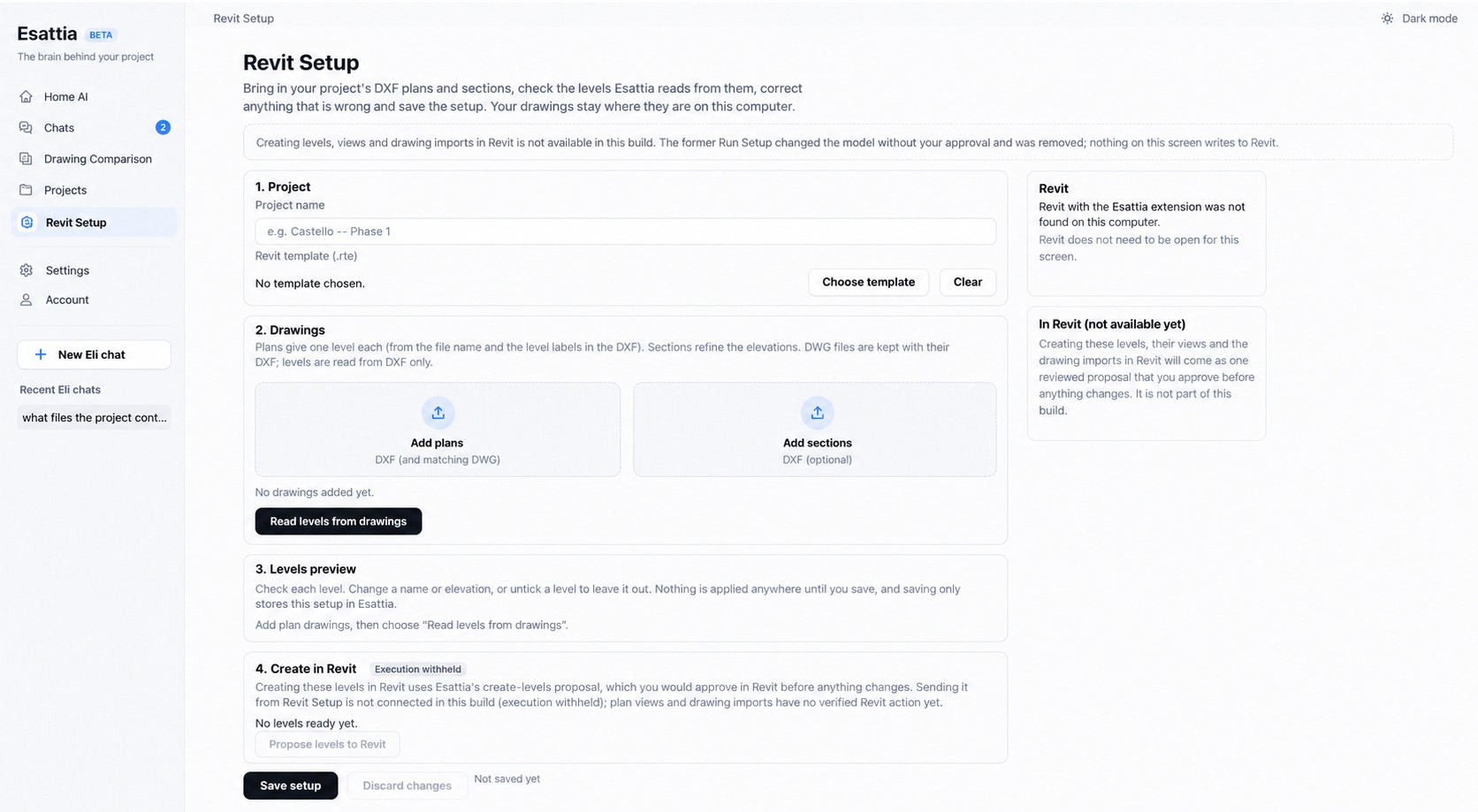
Bring project, template and drawing information together, then review the proposed levels before deciding what comes next.
Creating levels, views and drawing imports in Revit is planned. Model changes will require a reviewed proposal and approval.
Review views, datums, layouts, crop and scale settings through supported Revit workflows. Confirm the tools enabled for your beta account.
Development inventories describe these review operations. They are examples of inspection workflows, not a promise that every check is enabled for customers or external AI clients.
Pre-Issue Audit, Warning Triage and Sheet Audit help surface review candidates and missing information. They do not certify model compliance or completeness.
Clash Flag, Tag and Dimension Checks, and Link Audit provide scoped evidence. Confirm checked views, loaded links and geometry coverage before relying on a result.
View Cleanup, Layout Organizer, Crop and Scale, and template/filter workflows address drawing organization. A suggestion or preview is separate from permission to change the model.
Tool availability is release- and workflow-specific. Internal operations, external read tools, navigation and approved model changes are different capability tiers.
Start with inspection. For a separately enabled and accepted write workflow, a trusted human reviews the exact proposal before execution and verification. The website does not establish that model-changing workflows are currently released or enabled.
Supported operations depend on the enabled workflow. Ask which tools are included before using a model-changing action.
Eli helps investigate an element. The intended next step is a reviewed issue linked to a project and shared with the right colleague, then checked against a revised file.
Development previews connect local project files, comparison findings and conversation references. Cross-office delivery and the complete issue lifecycle are planned.
A BIM automation workflow should keep model evidence and professional judgment together. Eli is designed to help inspect supported Revit information, prepare a review and keep proposed modifications visible before execution.
For example, an engineer can start with a question about an element or sheet. The intended connected workflow carries the reviewed finding into BIM issue management and team discussion, then checks the relevant revision in model or drawing comparison. Confirm supported clients, model-changing actions and workspace connections before starting a workflow.